Answers Database
M1.x: EPIC: How to read the CLB carry mode

Record #2213
Product Family: Software
Product Line: FPGA Implementation
Product Part: Epic
Problem Title:
M1.x: EPIC: How to read the CLB carry mode
Problem Description:
Urgency: Standard
General Description:
How do I determine a CLB's carry mode in EPIC?
Solution 1:
Select the CLB in EPIC, then click Editblock. In the Editblock screen, select Carry.
The CLB carry mode will be highlighted in the list of possible carry modes.
You can also determine the carry mode directly from the CLB diagram in Editblock:
1. The carry function type (e.g., ADD or ADDSUB) is selected from the list in the in the CARRYMODE e
ntity.
2. The function generators used by the carry mode (F, G, or FG) have the CARRY
check box filled in.
3. The carry source (e.g., 0, 1, or CI) is indicated by the corresponding selected input
on the 6-to-1 carry mux.
In the example Editblock screen shot below, the ADDSUB function is selected (1),
both F and G carry blocks are active (2), and the CI input is active on the carry mux (3).
This indicates that the carry mode is ADDSUB-FG-CI.
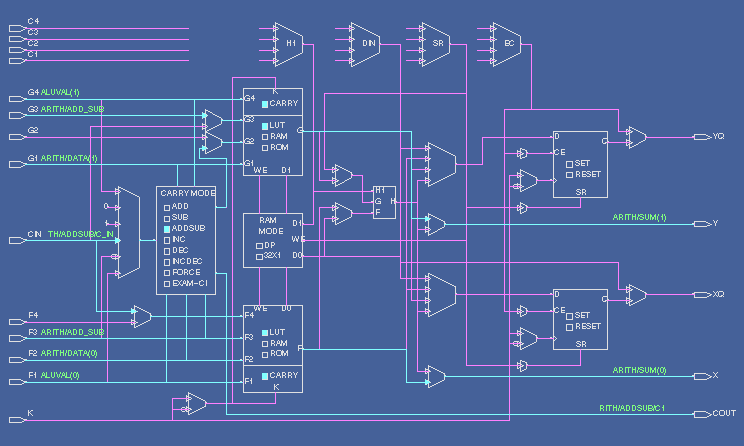
CLB Configured as ADDSUB-FG-CI
End of Record #2213 - Last Modified: 05/25/99 14:03 |




