Answers Database
VERILOG-XL: How to have NGD2VER automatically specify the addition of the `uselib directive and path to the SIMPRIMS libraries?

Record #3167
Product Family: Software
Product Line: FPGA Implementation
Product Part: ngd2ver
Product Version: 1.5is2
Problem Title:
VERILOG-XL: How to have NGD2VER automatically specify the addition of the `uselib directive
and path to the SIMPRIMS libraries?
Problem Description:
Urgency: Standard
General Description:
When performing a timing simulation with Verilog XL, you must specify the
location of the simulation libraries in order to perform the simulation. There
are typically 3 methods in which you may do this. The resolutions below
explain these 3 options.
Solution 1:
When targeting a Verilog-XL simulation, it is recommended that the -ul
option be specified when running the NGD2VER netlister. When the
-ul option is specified, NGD2VER will write out a `uselib directive to the
output .v file directing Verilog-XL to the location of the simulation libraries.
If using the Xilinx Alliance tools from the command line, simply add the
-ul switch when envoking NGD2VER:
ngd2ver -ul <other_options> time_sim.nga
This will add the following line to the Verilog simulation netlist from
NGD2VER:
1.5i and earliear:
`uselib <path_to_xilinx>/verilog/data libext=.vmd
2.1i and later:
`uselib <path_to_xilinx>/verilog/src/simprims libext=.v
If you are using the Design Manager GUI to implement the design. This
switch may be added by performing the following steps:
1. From the Utilities pull-down menu in the Design Manager,
select Template Manager.
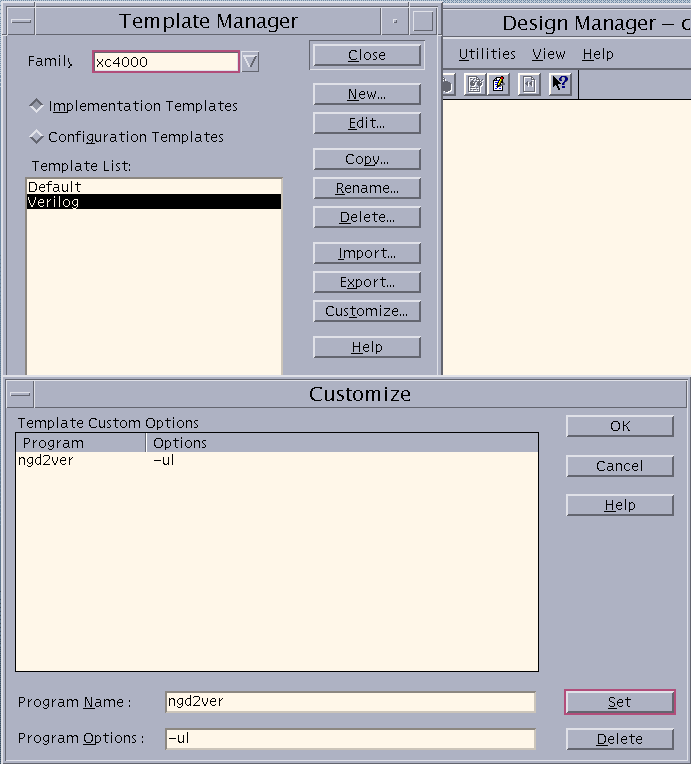
2. Select the New button and give your custom template a name, such as Verilog.
3. Select your template from the Template window and press the
customize button.
4. Within the Custom Template Dialog Window is where you can
specify the -ul switch for ngd2ver by typing ngd2ver in the
"Program Name" box and -ul in the "Program Options" box.
(WEBIMAGE 1:Template Manger Window)
5. Hit the Set Button on the Template Custom Options menu and then
hit the OK button and exit the Template Manager by clicking
the Close button.
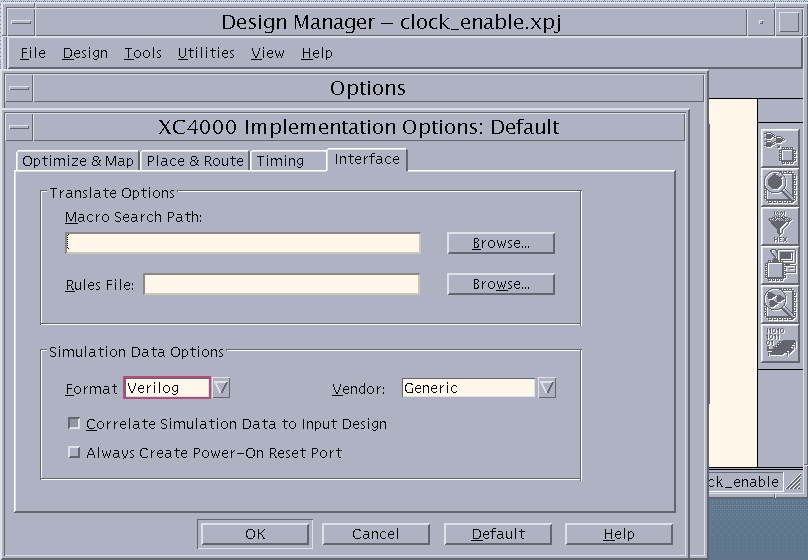
6. Implement the design. Before running the implementation,
select the "Options" button, then the Implementation "Edit
Template..." Button. Select the Interfaces Tab from the
Implementation Options window. Under Simulation Data Options,
select Verilog as the netlist format. Select OK.
(WEBIMAGE 2:Design Manager Implementation Options Window)
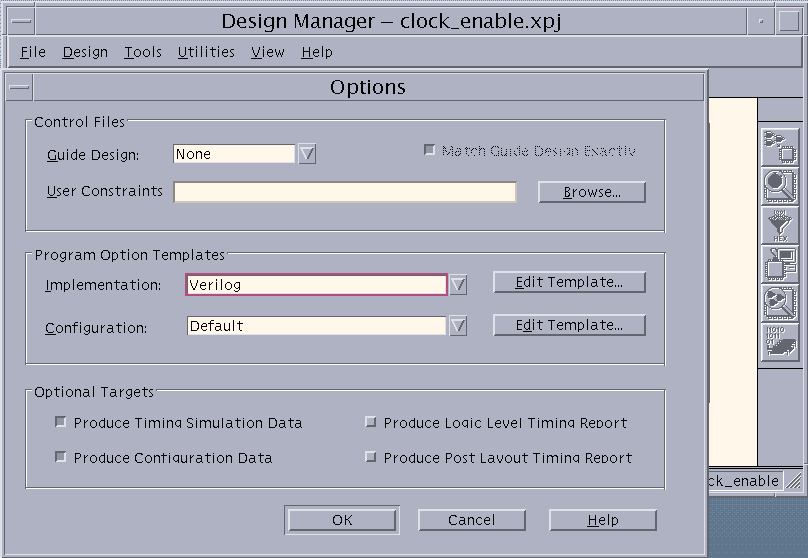
7. From the Options window, select your newly created
template in the Implementation field of the Design
Implementation Options window. Then select the
"Produce Timing Simulation" radio button. Once
this is done, you are ready to run the design.
(WEBIMAGE 3:Design Manager Options Window)
Solution 2:
You may also specify the library directory and extenstion from the
commandline wher envoking Verilog-XL with the -y and +libext switches:
1.5i and earliear:
verilog -y <path_to_xilinx>/verilog/data +libext+.vmd testbench.v timesim.v
2.1i and later:
verilog -y <path_to_xilinx>/verilog/src/simprims +libext+.v testbench.v timesim.v
Solution 3:
Another option, you may also manually add the `uselib directive to the begining
of the Verilog simulation netlist:
1.5i and earlier:
`uselib <path_to_xilinx>/verilog/data libext=.vmd
2.1i and later:
`uselib <path_to_xilinx>/verilog/src/simprims libext=.v
End of Record #3167 - Last Modified: 06/26/99 11:46 |